Tech Tip: ASUS parental's control for home router
September 24, 2026, 7:01 pmToday I wanted to share some tips and information if you use an ASUS router for parental's control.
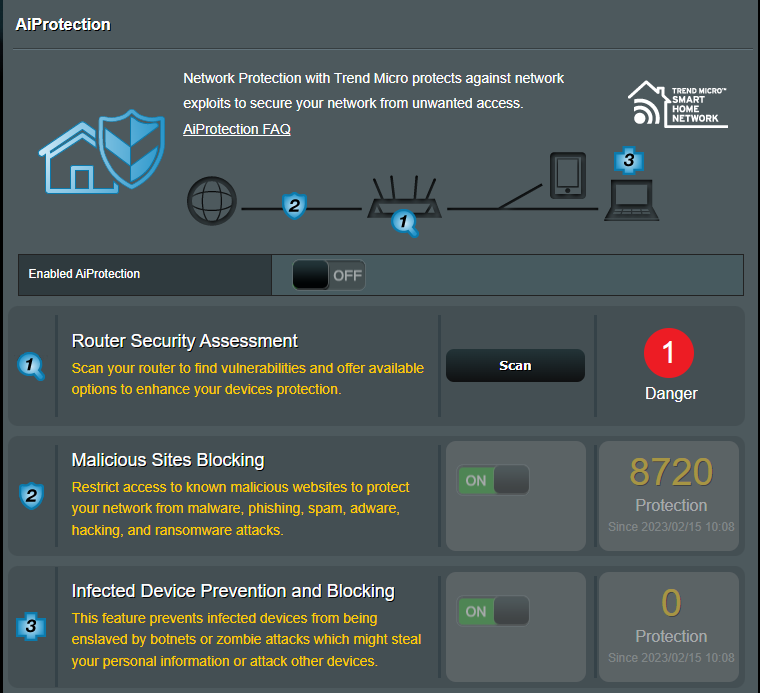
For general threat the router got those protection :
- AI Protection, which do the following;
- Malicious site protection.
- Infected device block.
For the parental's control there we are limited to hours scheduling but are not a paid addition, which is nice. The malicious site protection is not targeting for the teenagers, but it help to prevent malicious site for users that are not used to be alert for such.
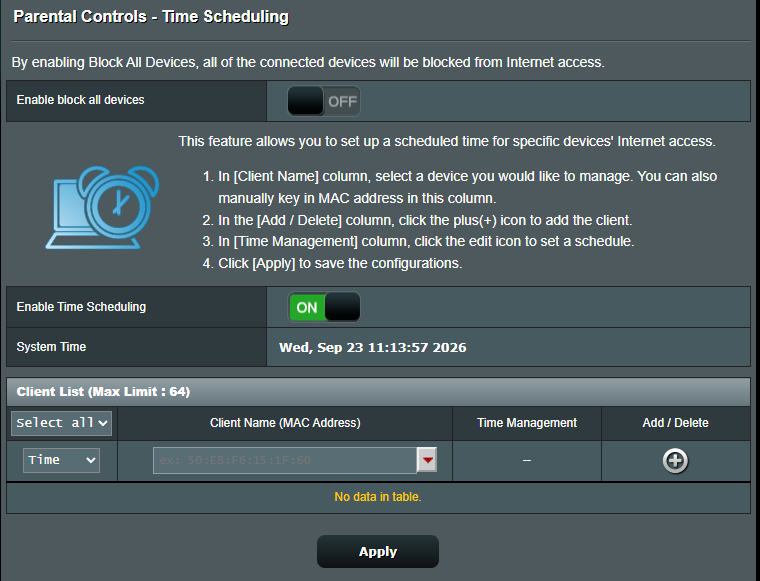
To make it work we need to add the device to the allow list, with the time schedule allocated for it.
The feature got a nice settings to block all. After the setting is set we can Allow specific device.
This feature is nice as by default anonymous mode on Apple Device, the MAC address get changed every time the device connect, so it add a layer of complexity to enable a schedule for them if your teenager want to bypass your rule.
Some printscreen of the panel;
Tech Tip: Amazon Fire Tablet Parental's control
September 24, 2026, 7:01 pmI wanted to review the parentals control of the Amazon Fire Tablet.
The product can be paid by months, but be advised I review the free version, which still allow some parental's control.
The first step is to register the tablet under your own amazon account as a parent.
The second step is to go on the dashboard; https://www.amazon.com/parentdashboard
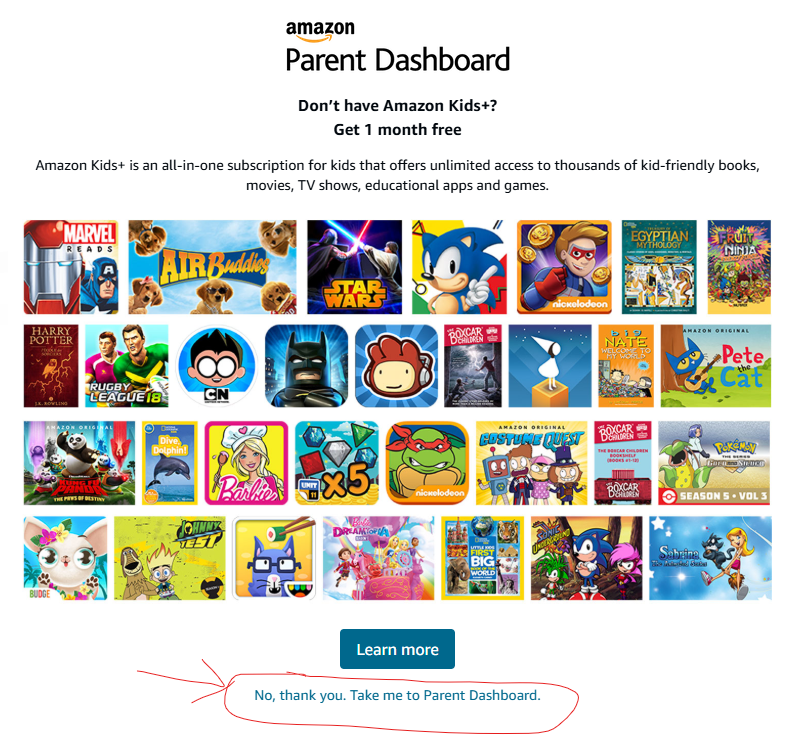
After that, we are presented with that page, which we can skip;
From here we can go see the settings and content we want to allow on each kids device.
We are presented with a resumy of the tablet use;
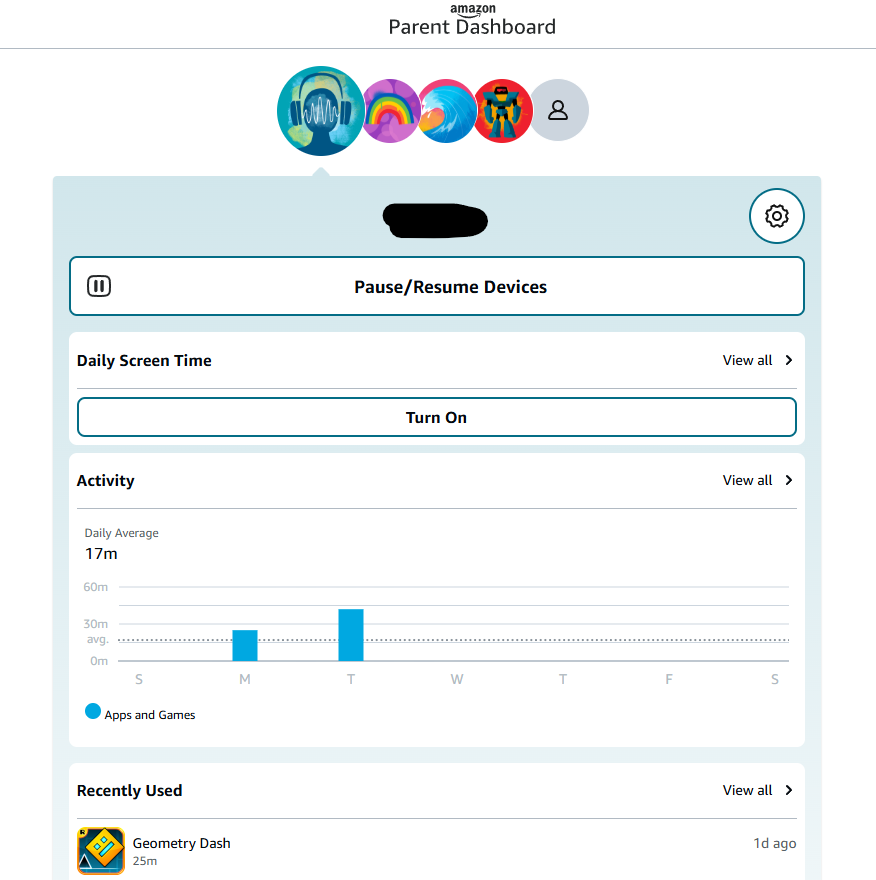
We can click to see like the schedule and settings;
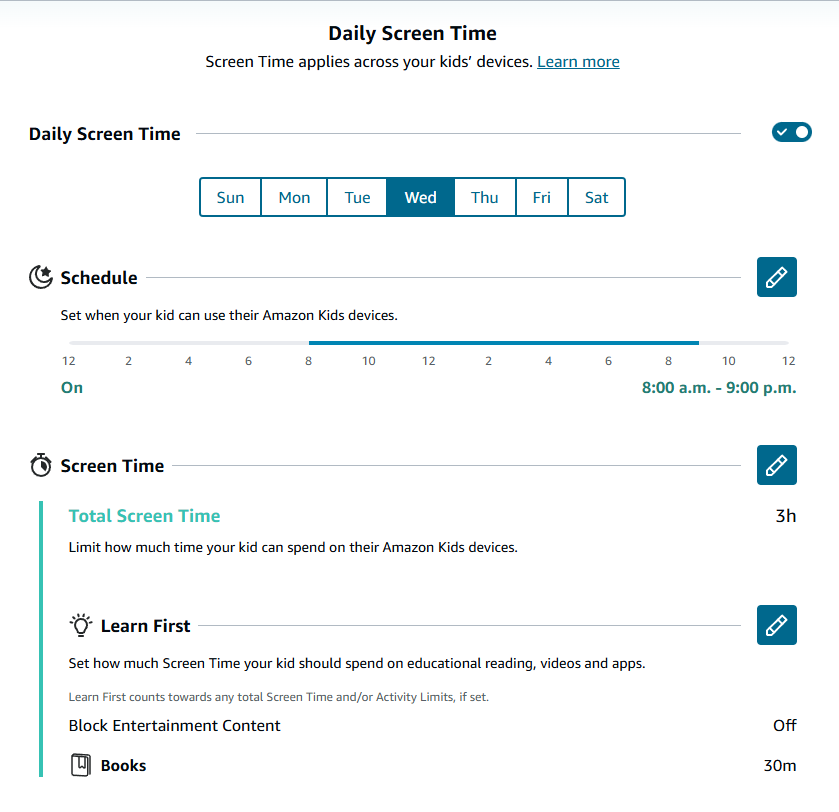
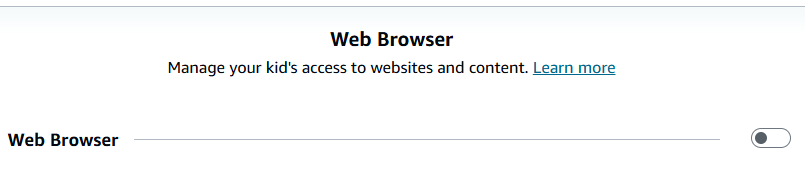
I recommend to turn off the web browser, as it's a way to bypass the restriction;
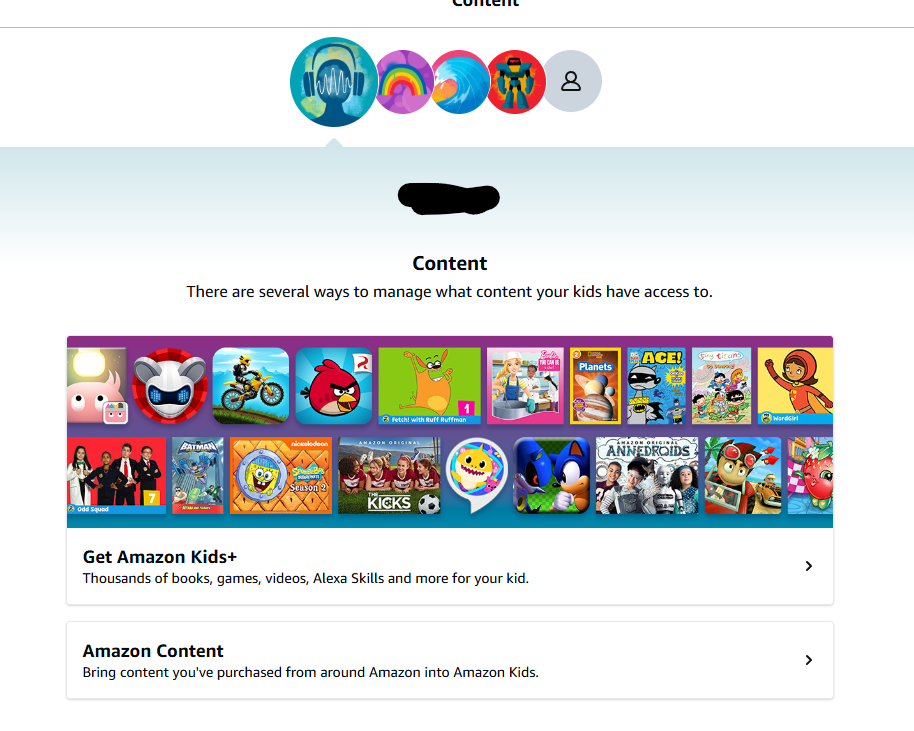
After that we can see the content;
We click to see owned content;
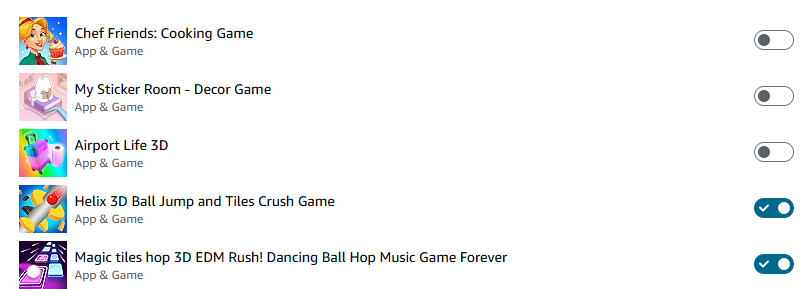
Be advised, a paid game can be installed on all devices, BUT in-games purchase NO so watch for in-games purchases, as it cna be tricky to re-import.
For my review, I found the parental control really nice, only drawback are the ingame purchase mode, which are hard to transfert, like if your kid broke is tablet, the ID dont fit, so you have to contact all game to reactivate.
Featured App - Blippi Roku App
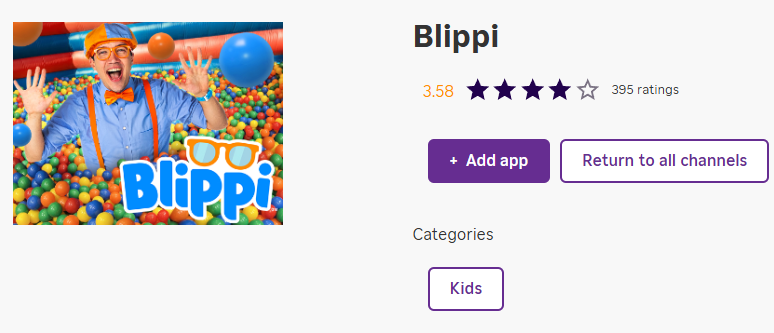
September 24, 2026, 7:00 pmA App worth featuring is the Roku App for the Blippi's channel.
The app seem to exist on the Apple TV, but it need subscription to Apple TV.
The Roku App is free, and it feature multiple language, Spanish and English's content, which is nice.
Link: https://channelstore.roku.com/en-ca/details/557cd0945043294134be649895da8d56:1c4060fa5bb0a0da8dbd6ae81e467947/blippi
Tech Tip: Meraki firewall possible parental control
September 24, 2026, 6:08 pmHi !
Today I will share some parental control possible if you own a Meraki firewall at home.
First of all, you must know to have the control, you need the Advanced suite licence for the device. Enterprise licence does not cover that. For a strange reason Meraki's enterprise licence is the basic's one, without Content Filtering.
In a nutshell, it exist only 3 way to make it possible;
-
Block Adult Content. That method will block for everyone in the house.
- Go to the Meraki Dashboard.Navigate to Security & SD-WAN (or Wireless for AP-specific settings) > Configure > Content Filtering.
- Check the option to Block adult content using the built-in database of objectionable websites.
- Add custom blocked or allowed URL patterns/categories if needed.
-
Create a Dedicated Kids' SSID. This method is more flexible that #1, as it block adult category on a SSID that the kid device will use.
- Create a separate wireless network or SSID specifically for children's devices.
- Apply strict content filtering and traffic shaping rules exclusively to that SSID.
-
Set Access Schedules. This settings would go over the method #2, to make sure no device are left after bed time to naviguate or use the Internet.
- Configure availability schedules on the specific kids' SSID to turn off internet access during bedtime or study hours.
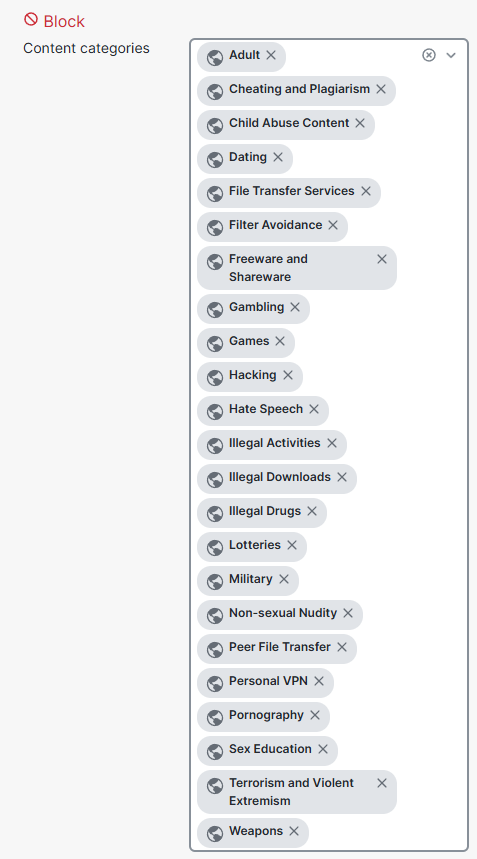
I suggest those categories to block;
French App Featuring - ICI TOU.TV Channel
September 23, 2026, 8:45 pmToday I wanted to share a small and free TV app, ICI TOU.TV.

The App feature in-direct TV feed, but more importantly one dedicated to the kids in a 24/7 fashion, which is nice.
There is one live Agent-Jean's channel, for older kids.
I feature it as the app is available on all platform, including the Rooku store.
Be advised some more adult's content is available on the app, and no control to limit the age.
In the App Store: https://apps.apple.com/ca/app/ici-tou-tv/id411538137
In the Google Store: https://play.google.com/store/apps/details?id=tv.tou.android&hl=en_CA&pli=1
In the Amazon Store: https://www.amazon.ca/Radio-Canada-ICI-TOU-TV/dp/B07FXQT63T
Some images from the appstore;