Lorky`s Blog - Techno ressources and general informations for everyone !
Note
All blog links are archived here.
Windows 10 - RemoteApp Content redirection DOCX
April 16, 2021, 3:50 pm
I wanted to share a small tip if you do RemoteApp content redirection with Microsoft Word.
The content redirection can bug out of the box for certain machines because by default the .docx is associated with WordPad.
To fix the error you can simply push a GPP to delete that key;

I suggest to target they key in a computer GPO, as when the user will login the Remote Desktop Connection will refresh and reset the content redirection at the user login.
Windows 10 VDI Deploy Teams machine based
February 2, 2021, 11:30 pm
Hi
Today I wanted to share a small tip if you want to deploy Teams in a VDI environment.
Usually the Teams client install into the user profile, as such on golden image it's not practical to do it that way.
Roaming profile or Citrix Profile Management make it easier to follow between machine, but it add complexity to manage that way. To be exact it's these two folders that need to be synced; C:\Users\username\AppData\Local\Microsoft\IdentityCache (%localAppdata%\Microsoft\IdentityCache) and C:\Users\username\AppData\Roaming\Microsoft\Teams (%appdata%\Microsoft\Teams).
Team got the Installer service, which add a hidden Teams setup inside the Program File's folder. The utility is useful, but Team got the full MSI too, which I prefer to use.
You can use GPO to deploy it, or manually inside the golden image that way;
msiexec /i Teams_Windows_x64.msi /l*v log.log ALLUSER=1 ALLUSERS=1 /QN OPTIONS="noAutoStart=true"
I like the noAutoStart option for a golden image scenario, the settings prevent the auto run from Teams when the user never did runned it. So after an user runned Teams, the auto start kick in, but it prevent one for an user that never used Teams.
A note is the ALLUSERS setting, the main difference is that setting publish the desktop icon for Teams, but to run from the ProgramFile, not directly from the user profile, so the desktop icon is valid for anyone on the computer :)
Updating Office without opening it
January 29, 2021, 11:42 pm
Hi everyone
I wanted to share a tip if you wanted to update an office installation without the need to open it.
The gold is to prevent the activation trigger or the trial starting if it's for an Office installation inside an OS deployment image in example. I know we can easily do; File > Office Account > Update Options > Update Now, but it's not my goal for this post.
The command to use is;
"C:\Program Files\Common Files\microsoft shared\ClickToRun\OfficeC2RClient.exe" /update user
If you need it to be silent;
"C:\Program Files\Common Files\microsoft shared\ClickToRun\OfficeC2RClient.exe" /update user displaylevel=false forceappshutdown=true
You can change the same way the update channel;
“C:\Program Files\Common Files\Microsoft Shared\ClickToRun\OfficeC2RClient.exe” /changesetting Channel=Current
and finally you can use psexec to send the command to a group of computer;
psexec @computers.txt -d -n 3 cmd /c “C:\Program Files\Common Files\Microsoft Shared\ClickToRun\OfficeC2RClient.exe” /update user updatepromptuser=false forceappshutdown=true displaylevel=false
Hope it help :)
DFS Replication - Best way to migrate a file server
January 29, 2021, 11:28 pm
Hi everyone
Today I wanted to do a lightweight post, as I seen a lot of IT folks still use robocopy and manual's way to migrate fileserver.
With DFS support from 2008R2 to up to today, never forget that DFS is a nice approach now. You don't need to create a namespace, just the replication folder.
I seen so much horror from robocopy, bad param that forget the file security, or too long path that prevent a copy.. I just wanted to share the method.
Remote Desktop Latency (Win10 / RemoteFX)
January 24, 2021, 11:33 pm
Hi everyone
Today I wanted to share a problem I seen some time on Remote desktop server.
It's a unexpected lag in the user session. I call unexpected as in my case the server is not at all missing resources and the internet link is good.
Some older Remote Desktop can be greatly impacted by the RemoteFX settings; which are located there;
Computer Configuration/Policies/Admin Templates/Windows Components/Remote Desktop Services/Remote Desktop Session Host/Remote Session Environment
Use advanced RemoteFX graphics for RemoteApp – Disabled
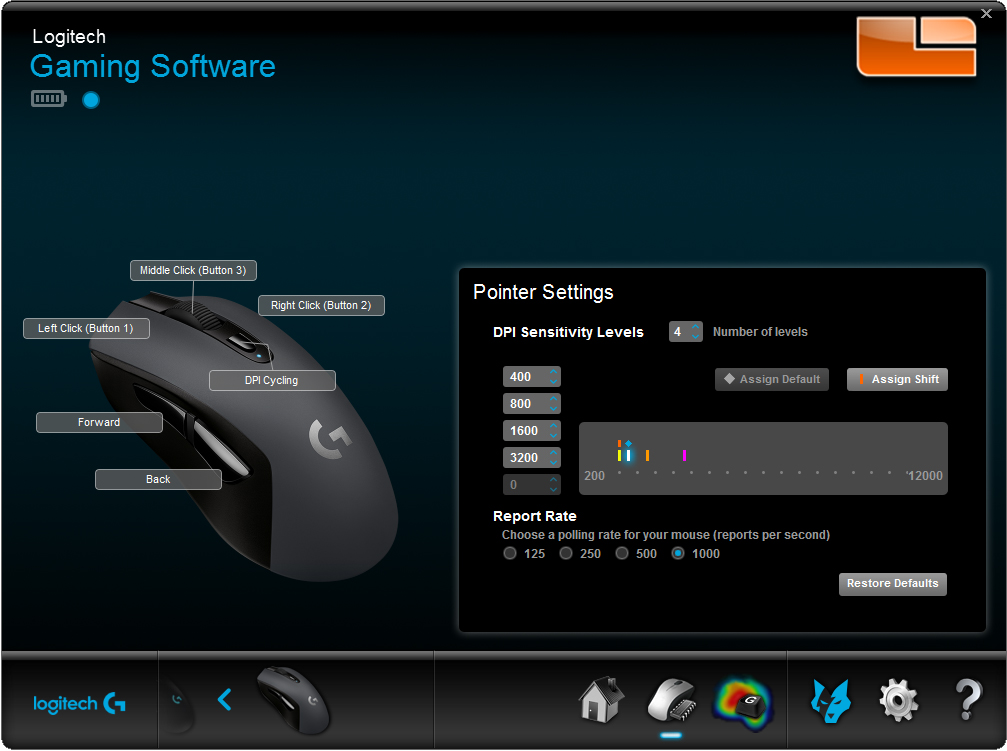
If the setting does not work there is a unexpected issue that can rise. The mouse polling rate.. That case happen if one of your user use a gaming mouse. Usually the polling is around 125 hz by default. Most gaming mouse go around 1000 hz.
Such polling really make the server unresponsive for the user session.
You can see some example stated by other people;
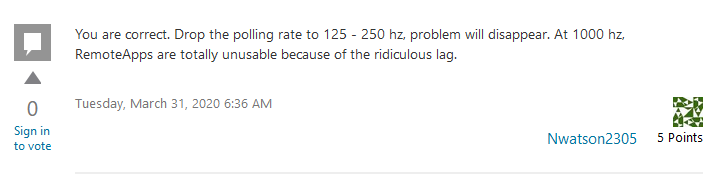
Ref: https://social.technet.microsoft.com/Forums/en-US/f3e9852b-393c-4aa0-9d2f-961a82cfc603/remoteapp-after-windows-10-update-1803-are-slow-and-right-mouse-button-is-not-responding-it-reacts?forum=winserverTS
or;

or;

As you can see it's a common error. If you got a application to lower the polling it can be easy to deal, else you might have to get a older mouse, or a more standard's one.
An example of where to change that setting for a logitech's mouse;
Thanks everyone