Lorky`s Blog - Techno ressources and general informations for everyone !
Note
All blog links are archived here.
Windows 10 - Unified Write Filter - Quick tip for the monitor resolution
September 25, 2020, 3:51 pm
Hi everyone
Today I wanted to share a quick tip if you want to allow your users to set their own resolution.
By default the unified write filter allow some registry key, but when a user set a resolution, that setting currently impact all users sessions, so that specific setting is inside the HKLM.
As the seeting can change depending on the terminal you use, I would give you the tip to find the correct keys.
I used process monitor, and I log what SystemSettings do in the registry when you click to change the resolution, in example;
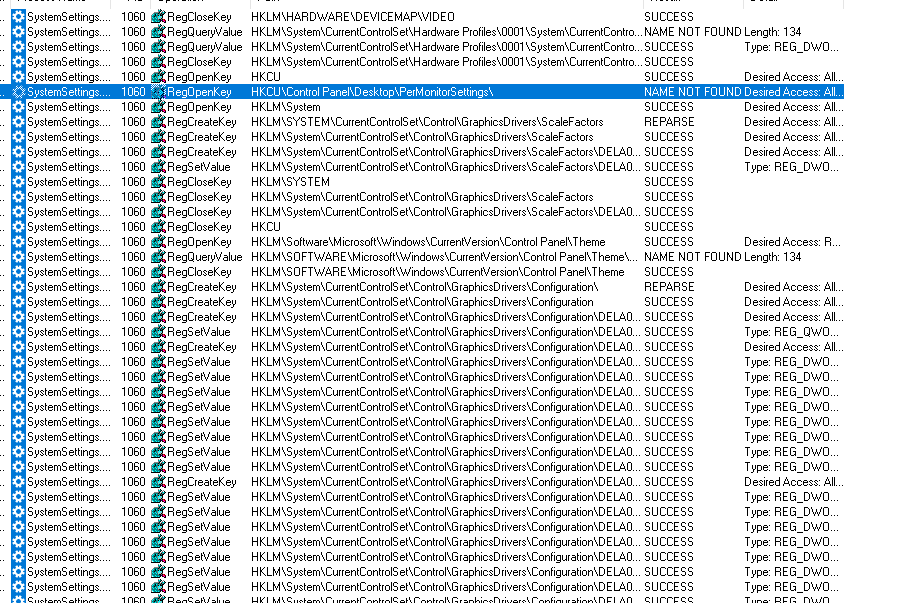
As you can see, the registry key might be long, you can select to easilly copy it;
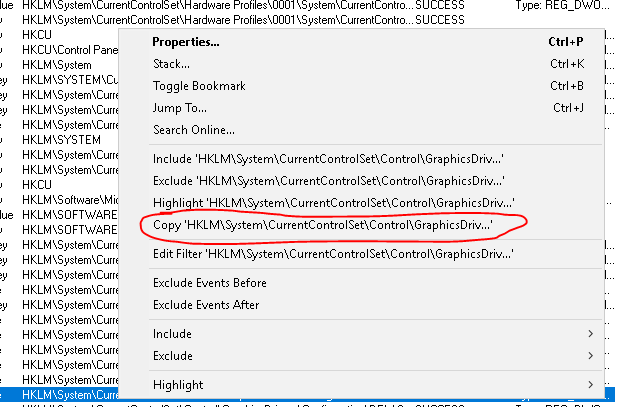
Inside the terminal after, add the exception for that registry key hive;

Thanks for the reading
In Remote Desktop how to send CTRL-ALT-DEL
September 10, 2020, 10:54 pm
Hi everyone, today I waned to share a small tip that not everyone know; how to send the famous key stroke CTRL-ALT-DELETE to the remote system in Remote Desktop.
It's always useful, in case you want to bring the task manager, or to try to recover from a unresponsible session.
ctrl+alt+end is the prescribed way to do this.
A small tip it's, but it's handy to have :)
You can see other shortcut there; Remote Desktop Tips and Tricks
Windows 10 build 2004 - Login script - Net Use Problem
August 31, 2020, 1:06 pmHi everyone
Today I wanted to share a small problem with Windows 10's newer build, 2004.
Login script that use net use no longer seem able to be used, the mapping no longer work.
To work around the issue you have two possible's way;
Add a timeout in the script's beginning;
timeout /t 60
or add a delete script first before the mapping;
NET USE * /DELETE /YES persistent: yes
Be sure that setting is set too, set it if not already before trying to make the workaround;
Computer Configuration
» Administrative Templates
» System
» Logon
» Always wait for the network at computer startup and logon
Some other mentionned that Enabling SMBv2 could help, but it all depend on your environnement, as in my case it happened between Windows 10 2004 client and a new DC in 2019.
Windows 10 IoT - Enable local profil with UWF
July 21, 2020, 3:19 pmHi, Today I wanted to share a small tip if you want to enable local write for the HCU / HKEY_USERS registry hive with UWF enabled.
By default UWF does not allow to exclude the HCU/ HKEY_USERS, you will got error if you try to exclude those registry path.
The tip seem small, but it's not intuitive to do it with UWF. The tip is to exclude the NTUSER.DAT folder where those settings are wrote. c:\users\ if you want to exclude all user profile, or just c:\users\userx\ntdata.* where you want to exclude the registry.
With such exclusion it would be mandatory to exclude that registry hive;
Computer\HKEY_LOCAL_MACHINE\SOFTWARE\Microsoft\Windows NT\CurrentVersion\ProfileList
That exclusion would make sure Windows will remember each profile created inside the computer.
Thanks everyone
Windows 10 IoT Terminal Deployment – Part 6 – Manage the system local on first boot
March 7, 2020, 11:03 pmHi everyone
Today I will share a small tip if you got a lot of Windows 10 to manage the default language. IoT or any other Windows 10 version for that tip.
A lot of new system come by default in en-US but if you want to automate the distribution you can tweak a bit some policy to set correctly the wanted locale.
It seem simple, but don't forget the locale impacts those settings differently;
- The OS language
- The login screen language
- The default keyboard for new session
- The default keyboard for the login screen
- The date format and various localized settings
For almost all of those settings it's a settings to push for each one.
Where it can be tricky is if like me you live in zone where the default keyboard never match by default.
In example, I live in French's Canada, and Windows put for me Canadian multilingual by default, which is not the best one for fr-CA. You have legacy french Canadian keyboard and finally the french Canadian's layout.
So when we push the locations settings, as you can guess in a case like me the default keyboard is never set correctly, thus it need a bit more settings to push.
First of, you need to know if your computer got ready the language pack or not. On IoT usually they are already ready. If not, please download the language ISO and copy the one you need to deploy.


When the file is deployed, you can pre-install the .cab that way in a script :
dism /online /add-package /packagepath:C:\Microsoft-Windows-Client-Language-Pack_x64_fr-ca.cab
After that we can run the script to set the correct layout we need, I will explain below;
Powershell.exe -executionpolicy remotesigned -File C:\language.ps1
control.exe intl.cpl,, /f:"C:\language.xml"
language.ps1
Set-Culture fr-CA
Set-WinSystemLocale fr-CA
Set-WinHomeLocation -GeoId 39
Set-WinSystemLocale -SystemLocale fr-CA\$langList = New-WinUserLanguageList -Language "fr-CA"
\$langList[0].InputMethodTips.Clear()
\$langList[0].InputMethodTips.Add('0c0c:00001009')
\$langList.Add("en-US")Set-WinUserLanguageList -LanguageList \$langList
language.xml
\<!--Keyboard Language Change-->
\<gs:GlobalizationServices xmlns:gs="urn:longhornGlobalizationUnattend">
\<!--User List-->
\<gs:UserList>
\<gs:User UserID="Current" CopySettingsToDefaultUserAcct="true" CopySettingsToSystemAcct="true"/>
\</gs:UserList>\<!-- MUI-->
\<gs:MUILanguagePreferences>
\<gs:MUILanguage Value="fr-CA" />
\<gs:MUIFallback Value="fr-CA" />
\</gs:MUILanguagePreferences>\<!--input preferences-->
\<gs:InputPreferences>
\<!--en-US-->
\<gs:InputLanguageID Action="add" ID="0409:00000409"/>
\</gs:InputPreferences>
\</gs:GlobalizationServices>
The command Powershell.exe -executionpolicy remotesigned -File C:\language.ps1 does set the location and the default local.
The only thing the script can't do, is to set the keyboard for NEW users account.
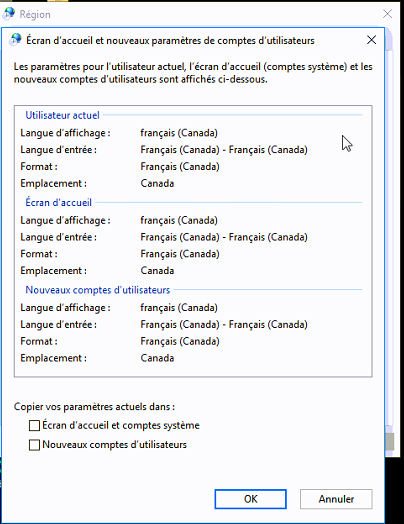
The XML import, control.exe intl.cpl,, /f:"C:\language.xml", simulate a click on apply to new user account and to the login screen and system's account. The important flag is see is; CopySettingsToDefaultUserAcct & CopySettingsToSystemAcct
That XML set that screen options correctly;
Thanks everyone :)