Lorky`s Blog - Techno ressources and general informations for everyone !
Note
All blog links are archived here.
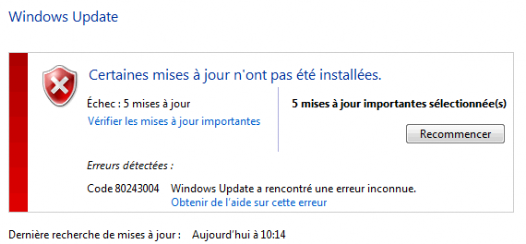
Windows Update Error 80243004
February 14, 2019, 5:15 pmHi everyone
If you stumble into the Windows Update error 80243004 please know there is an easy way to resolve it.
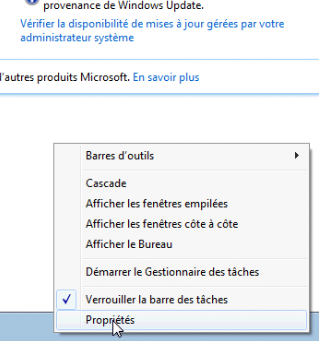
The bug is related to missing icon in the systray, so we go check there, we right-click the systray and click property;
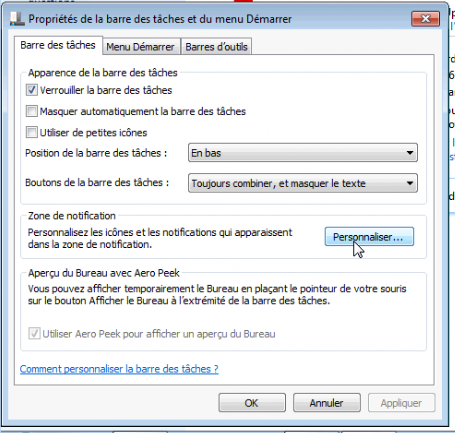
We click personnalize;
On that windows we click to show all icon in the systray.
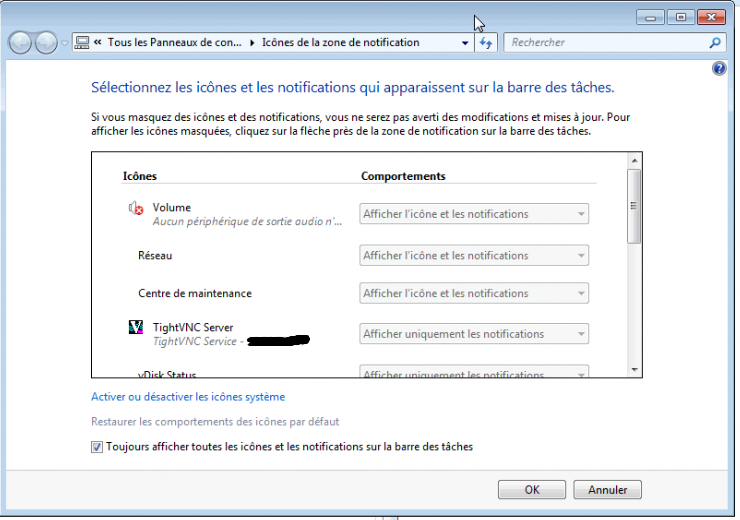
After that the Windows Update should work correctly :)
Windows 10 and the faulty network adapter
February 13, 2019, 5:15 pmHi sysadmin !
Today I wanted to share a small bug I encountered, and how to solve it.
After all the update, if you lost all your network connection, and in your device manager they are all yellow in error, please check the status of them;
Network Adaptor error: Windows is still setting up the class configuration for this device. (Code 56)
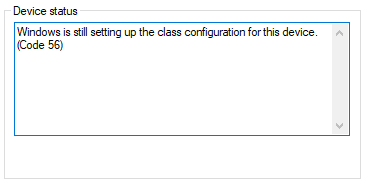
If that happen to you, any new devices you will try to install will fall into the same state.
The Windows update will try to reinstall the driver, but will fail.
The recovery step is easy, check your VPN software installed, one is not Windows Ready for that build.
In my case it was CheckPoint VPN
Uninstall and the bug disappear live, no reboot necessary !
Windows Server 2019 RDS: Install Error: dismapi_error__failed_to_enable_updates rds-web-access
February 11, 2019, 9:50 pmIn Windows Server 2019, if you ever find yourself hit by a bug when you try to add the rds-web-access, then please follow these step;
Problem
In the eventlog
Install-WindowsFeature RDS-Web-Access -IncludeAllSubFeature
+ CategoryInfo : InvalidOperation: (@{Vhd=; Credent...Name=localhost}:PSObject) [Install-WindowsFeature],
Exception
+ FullyQualifiedErrorId : DISMAPIError\_Failed_To_Enable_Updates,Microsoft.Windows.ServerManager.Commands.AddWindowsFeatureCommand
Step tried
- Installing with Server Manager GUI
- DISM /Online /Cleanup-Image /RestoreHealth
- DISM /Online /Cleanup-Image /RestoreHealth /Source:wim:D:\sources\install.wim:1 /limitaccess
- sfc /scannow
- Install-WindowsFeature RDS-Web-Access -source D:\sources\install.wim
- Install-WindowsFeature RDS-RD-Server -IncludeAllSubFeature will work at first, but revert the change at the reboot.
Issue
A previous installation of IIS is the culprit
Solution
Removing IIS:

After that; then you migh have to remove the IIS directory completly;
netsh http show urlacl
netsh http delete urlacl http://+:80/ netsh http delete urlacl https://+:443/
Windows Machine Unknown state on ESX
February 11, 2019, 9:25 pmToday I will share a small tip if your Windows VM get an Unknown state in your ESX.

The problem can be easily fixed by first removing the machine from the inventory, without deleting the files.
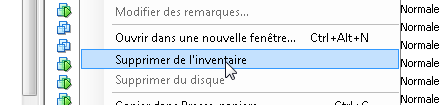
After that you will have to go back into your datastore to re-add the machine back to the inventory, by right-clicking the .VMX file, and select the Add to Inventory option.
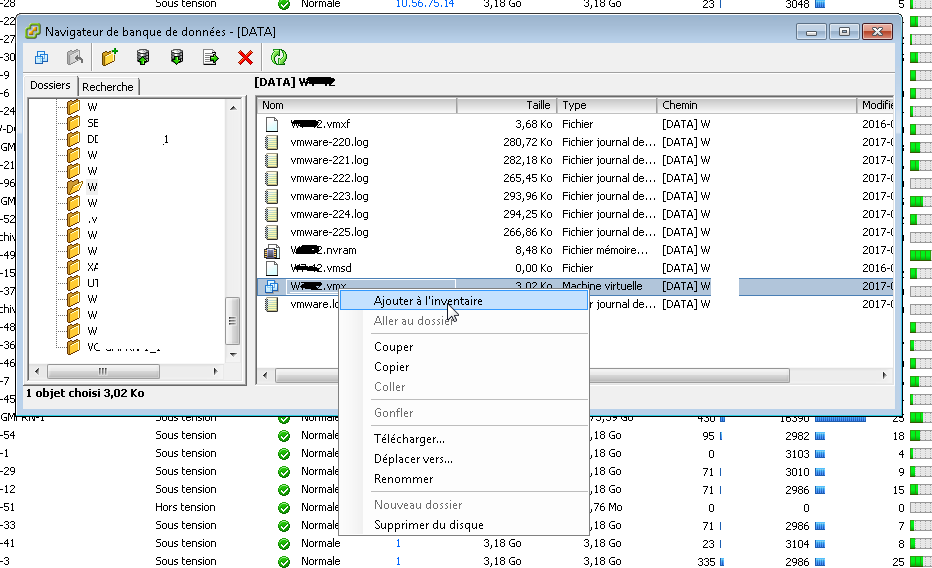
After that the state will be green :)
RDS: Published App + Dell / Wyse ThinOS + Juniper DHCP relay option
February 1, 2019, 9:28 pmHi everyone
Today I wanted to share a bug I had with some Juniper SRX-100 model and newer, when with the SSG5 it was ok.
The bug appear on the terminal when they boot on a remote subnet (DHCP relay), the DHCP take time to deliever them an IP from the DHCP relay. The problem does not appear in the local subnet where the DHCP server is. The problem appear only on newer tunnel with the Juniper.
After a *lot* of research I found out that the newest JunosOS does not handle correctly custom DHCP's option when the relay happen...
For reference all the possible option. The important's one in my case is the 161
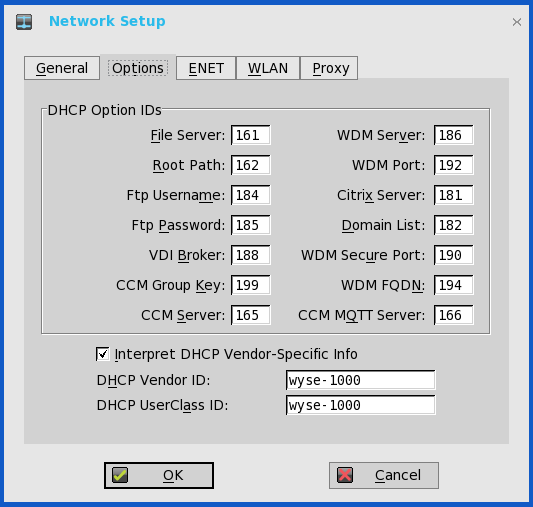
The terminal were getting the IP of the server where the root configuration is, where the root configuration to pre-configure the terminal with all my RDS's option.
The problem found was the Juniper don't handle correctly an IP into that field, like if the ftp server is named CENTRAL_FTP with the IP 192.168.1.50, then you must use the short DNS's name, not the full FQDN.
In my case I changed the DHCP option from 192.168.1.50 to CENTRAL_FTP and maked sure the DNS option was set correctly, and voila, the DHCP's option started to work flawlessly via my VPN tunnel with the Juniper !
Strange bug it's, but kinda why I share it, took time to find that culprit !